Choosing a TikTok Live TTS setup: browser, cloud or desktop bot
The three ways to read TikTok Live chat aloud, what each costs in money and setup time, and how to decide which one fits your stream.
 BoTik Team3 min readUpdated August 29, 2026
There are broadly three approaches to getting your TikTok Live chat read out loud. They differ less in what they can do and more in what they cost you — in money, in setup time, and in how much can break mid-stream.
| Browser speech | Cloud AI voices | Desktop bot | |
|---|---|---|---|
| Cost | Free, unlimited | Per character | Free to a one-off licence |
| Setup time | Minutes | ~10 minutes | An hour or more |
| Where audio is made | Your device | A server | Your machine |
| Fails if the network does | No | Yes | No |
| Voice cloning | No | Yes | Sometimes |
| Works on any machine you log into | Voices vary | Yes | No |
1. Browser-based speech
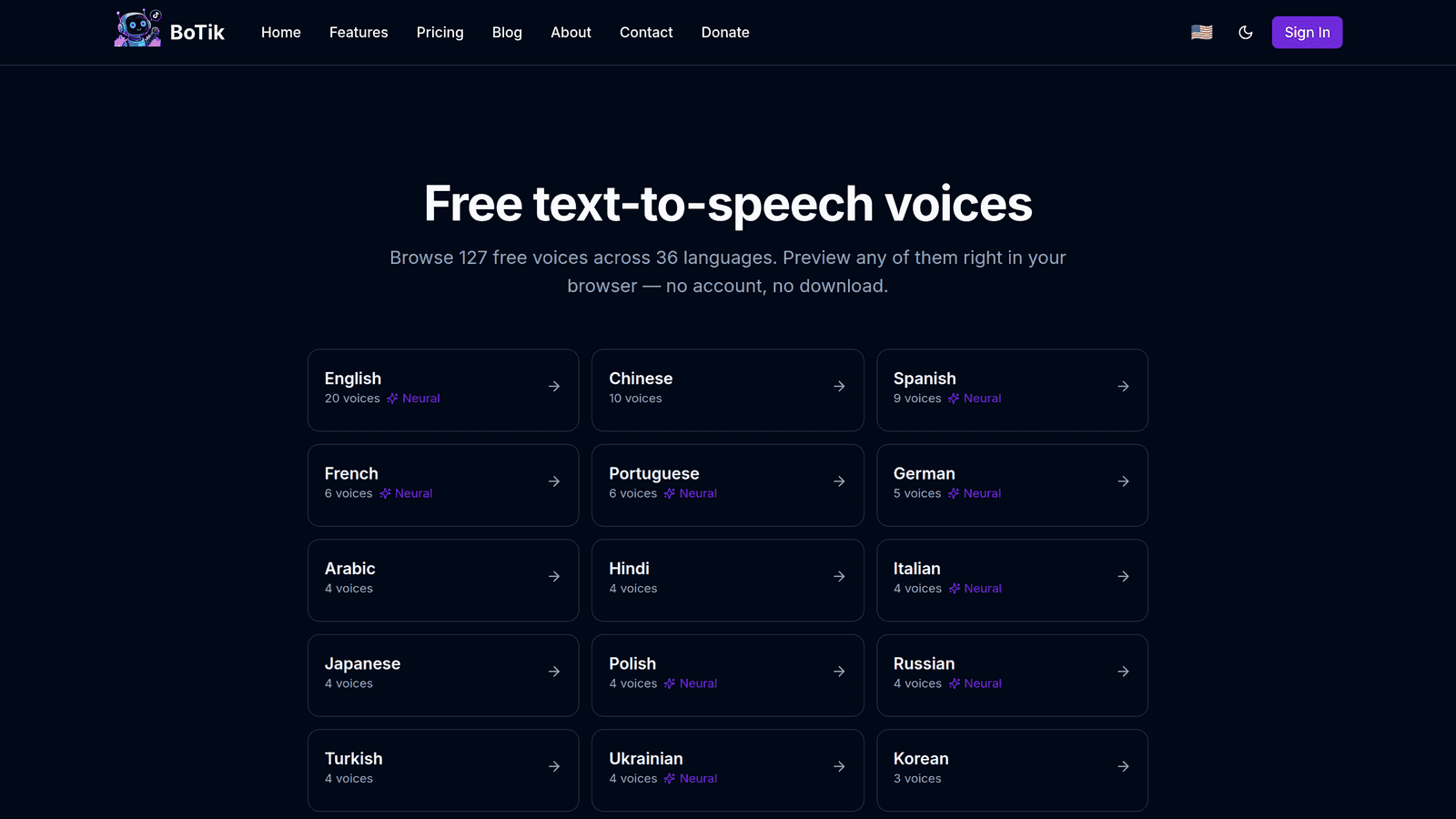
Audio is generated by the speech engine already installed on your device. Nothing is sent anywhere, there is no per-character cost, and there is no usage cap.
The trade-off is that your available voices depend on your operating system, and the same voice may simply not exist on a different machine. The best free TTS voices for streaming covers how to widen that list.
2. Cloud AI voices
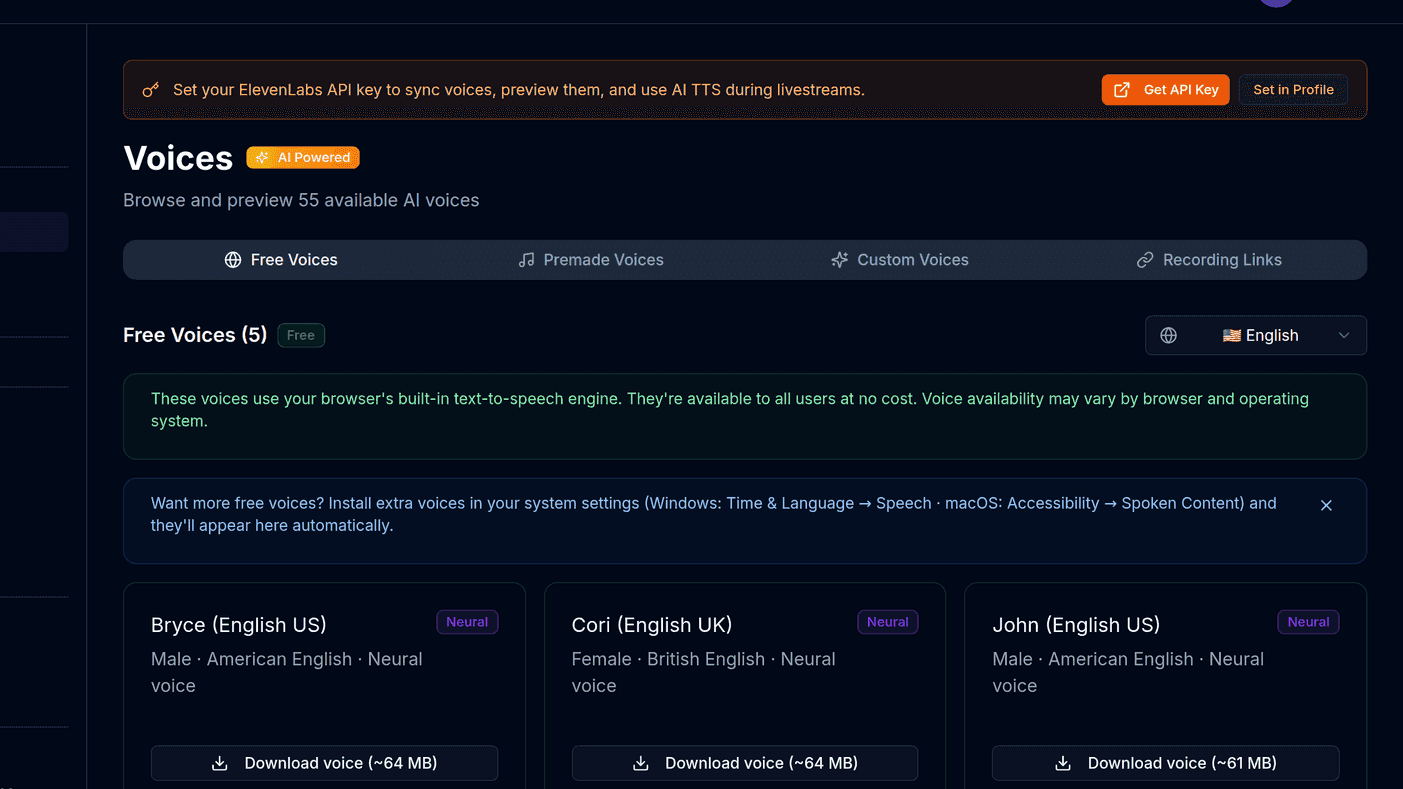
A provider generates the audio and streams it back. This is where voice cloning and the most natural-sounding output live, and it is the only option that can read chat back in your own voice.
The trade-off is that it is a network dependency. A slow response is a pause in your stream, and a busy chat can burn through a quota faster than you expect. Connecting ElevenLabs covers the setup and how to keep the bill proportional.
3. Desktop bots
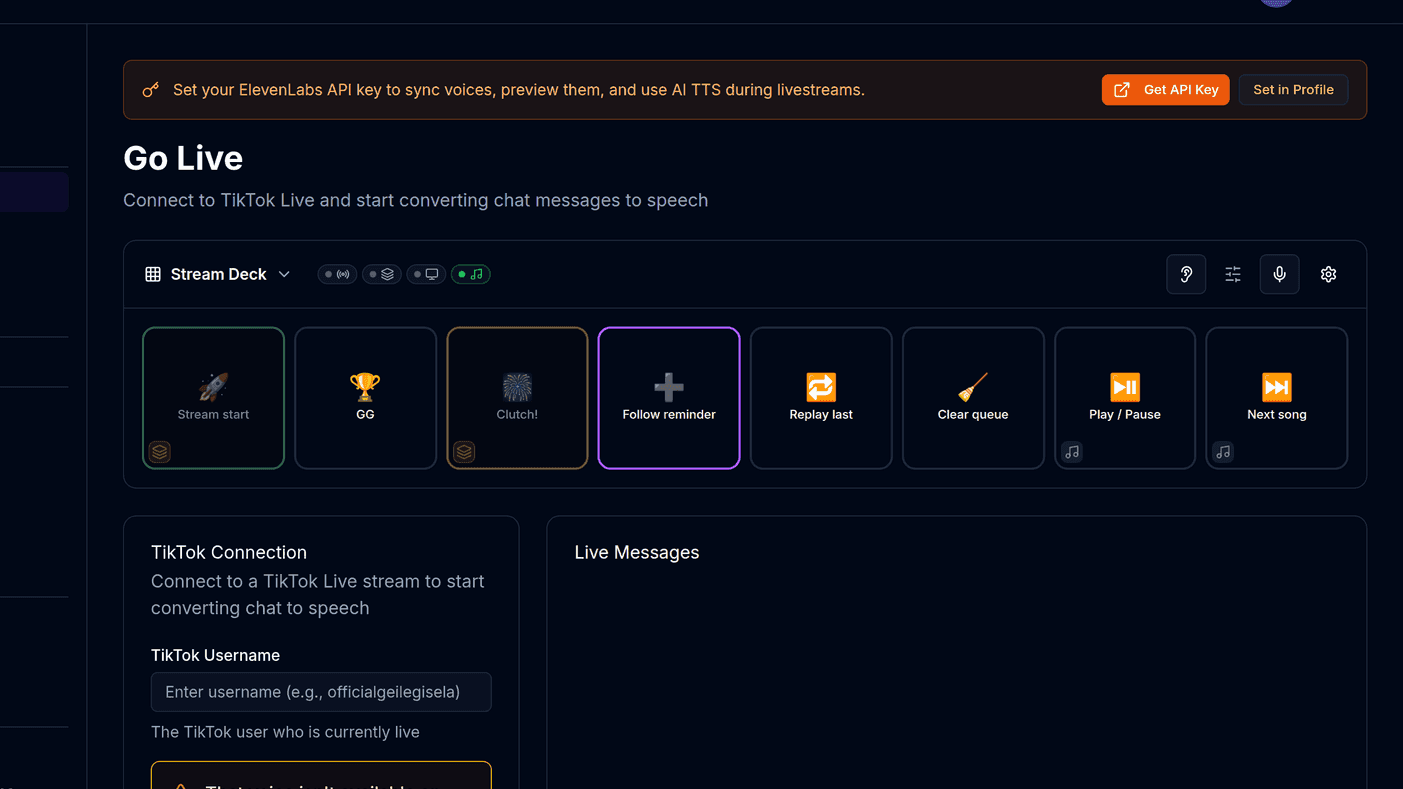
A program running on your machine connects to chat and speaks locally, often bundled with alerts and overlays. Setup is the longest of the three — install, permissions, audio routing — and it is another process competing for resources with whatever you are streaming.
Note
A desktop bot only works on the machine it is installed on. If you stream from a laptop sometimes and a desktop other times, that is a real cost rather than a footnote.
How to decide
Start with browser speech on your next stream.
It takes minutes and tells you immediately how chat reacts to being *heard* instead of read. That reaction is the only data point that matters.
Then try cloud voices for one stream.
Your own cloned voice reading chat, comments translated and spoken so international viewers get an answer, sound effects tied to gifts. Those change how a stream feels in a way a different default voice does not.
Consider a desktop bot only if you want TTS welded to your overlays and alerts in one program.
And only if you are happy maintaining local software.
The setup most streamers actually land on
These are not mutually exclusive, and the hybrid is usually the right answer: free browser voices as the all-viewers default, with paid voices reserved for your regulars, your moderators and yourself.
Tip
That keeps cost proportional to value rather than to chat volume. A raid of 400 people costs you nothing; your ten regulars still sound like themselves.
BoTik covers the first two approaches in one place — free browser voices to start, and Premium at $9.99/month for cloning, live translation, avatars, stickers, gift sounds, overlays and the Stream Deck. The 7-day trial does not ask for a card, so the sensible move is to run a normal stream with everything switched on and judge it on how chat behaves, not on a feature list.